
Application Dimensions
Application Dimensions allow to manage application entitlements (profiles, groups or licenses) as administrator-managed entries in Memority. You can reuse them consistently in provisioning rights and applicative roles.
However, some prerequisites must be respected to be able to use them in a tenant.
This page explains what Application Dimensions are, how they support provisioning, and how to use them.

Application Dimensions are available only for tenants initialized with presets 3.3.0 and later.
Definitions
What Is Provisioning ?
Provisioning allows to automatically create, update and deactivate/delete accounts in target application and keep data consistent between Memority (the authoritative source) and the application (the target).
Once Memority provisions an application, you should not create, modify, or deactivate/delete accounts directly in that application. Memority handles these actions automatically.
What Are Application Dimensions?
Application Dimensions are entries that you create and maintain in Memority to represent entitlements of a target application, such as :
Profiles
Groups
Licenses
Once created, you can select them as dimension values when configuring provisioning rights and applicative roles.

Memority provides the tools and screens to manage Application Dimensions, but it does not provide entitlement values by default. You must create the Profiles / Groups / Licenses that match each target application.
What Is a Dimension in Memority?
In Memority, a dimension is a parameter of a Right that lets you specify what the right applies to – for example, which application, license, or group. You typically set dimension values when you build an applicative role or assign a role.
More information : Rights - Dimensions
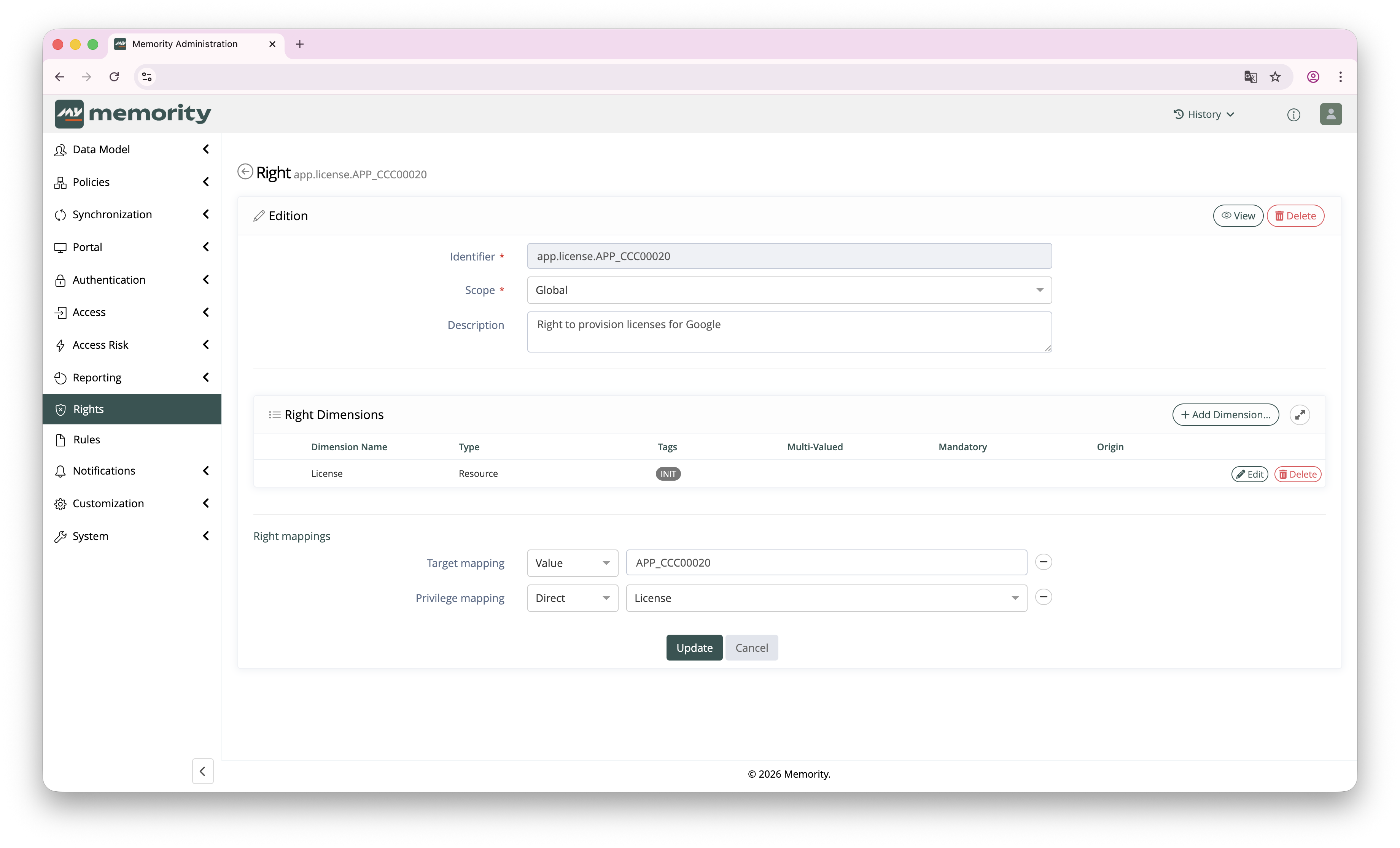
Right & Right Dimensions in the Administration Portal
What Is the Technical ID Used For?
Each dimension item includes a Technical ID ('rsrcTechnicalId').
This value must match the identifier expected by the target system (SKUid, group id, role code, …) and is the value used by provisioning connectors when calling the target application.
Application Dimensions in Memority
Application Dimensions are available through the User Portal and are designed to support provisioning use cases where entitlements must be selected from a controlled catalog that you build for each application.
What Can Be Managed?
Memority enables managing three categories of dimension items :
Profiles : to represent application profiles / functional profiles
Groups : to represent application groups or teams
Licenses : to represent application licenses / SKUs
Typical Process Flow
A typical usage follows the steps below :
Create the entitlement catalog in Memority for the application (Profiles / Groups / Licenses)
Create application-specific provisioning rights based on preset templates
Build applicative roles using these rights and selecting dimension values
When the role is assigned, provisioning uses the selected dimension items and their Technical ID
Prerequisites
Tenant Prerequisites
ID | Prerequisite |
|---|---|
PRESET1 | The tenant must be initialized with presets 3.3.0 or later. |
ACCESS1 | You must have administartion permissions to manage Application Dimensions and related configuration. |
Functional Prerequisites
ID | Prerequisite |
|---|---|
FUNC1 | You must identify which entitlements are provisioned in the target application (profiles, groups, licenses). |
FUNC2 | You must know the exact Technical IDs used by the target system for the entitlements. |
If you don’t know the Technical ID, start from the target application and their API documentation.
Configuration
Where to Manage Application Dimensions
🎯 User Portal location
Go to Applications
Open the target application
Open the tab Applicative roles
Open the sub-tab Dimensions
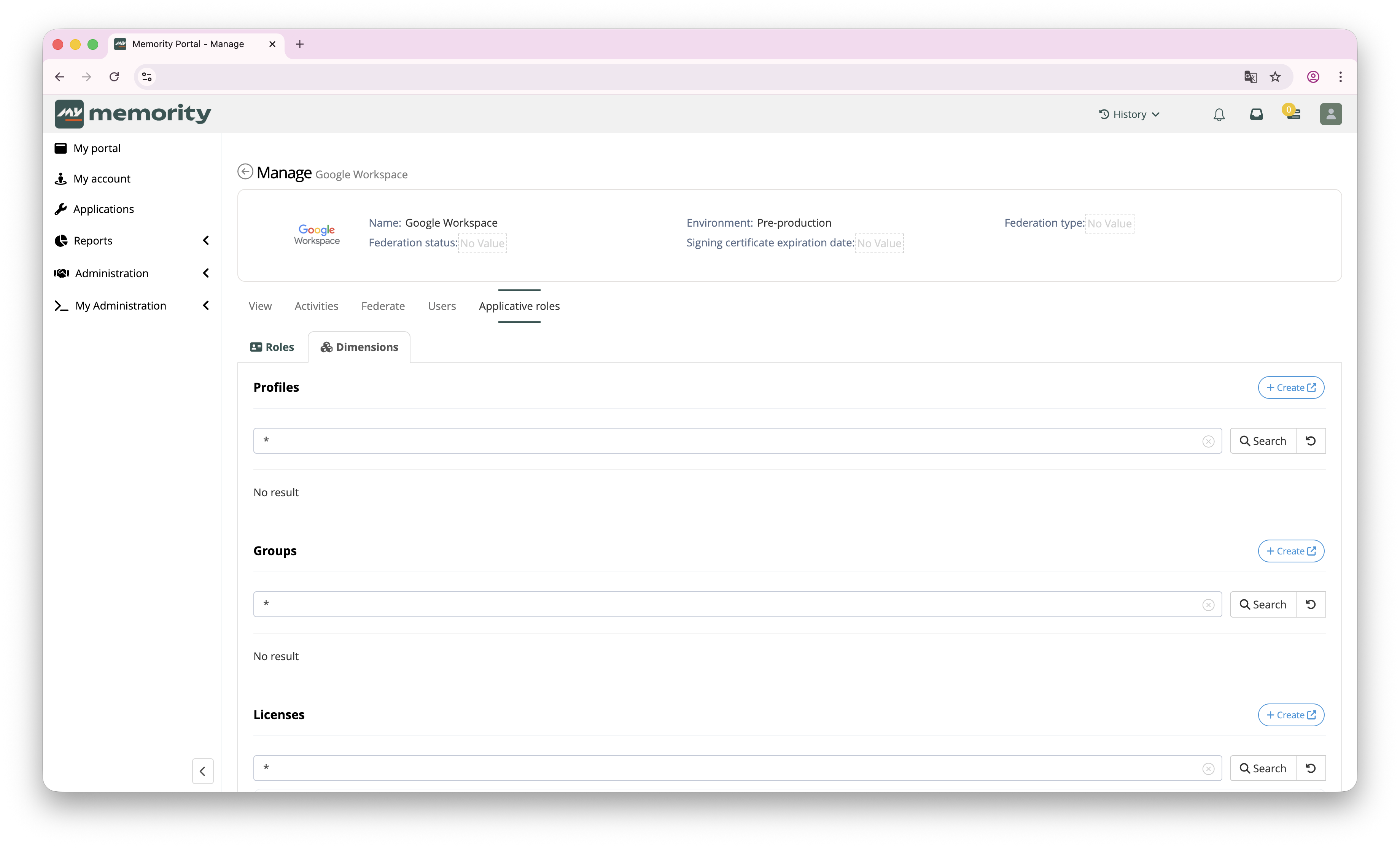
Application Dimensions menu : Applications > Applicative roles > Dimensions
The Dimensions sub-tab contains three sections : Profiles, Groups and Licenses.
Create Dimension Items (Profiles / Groups / Licenses)
In the relevant section (Profiles / Groups / Licenses), click create
Fill in the dimension item form
Submit
Dimension items can also be managed at scale through a CSV import, or automatically imported from the provisioning connector (when supported), instead of being created manually one by one.
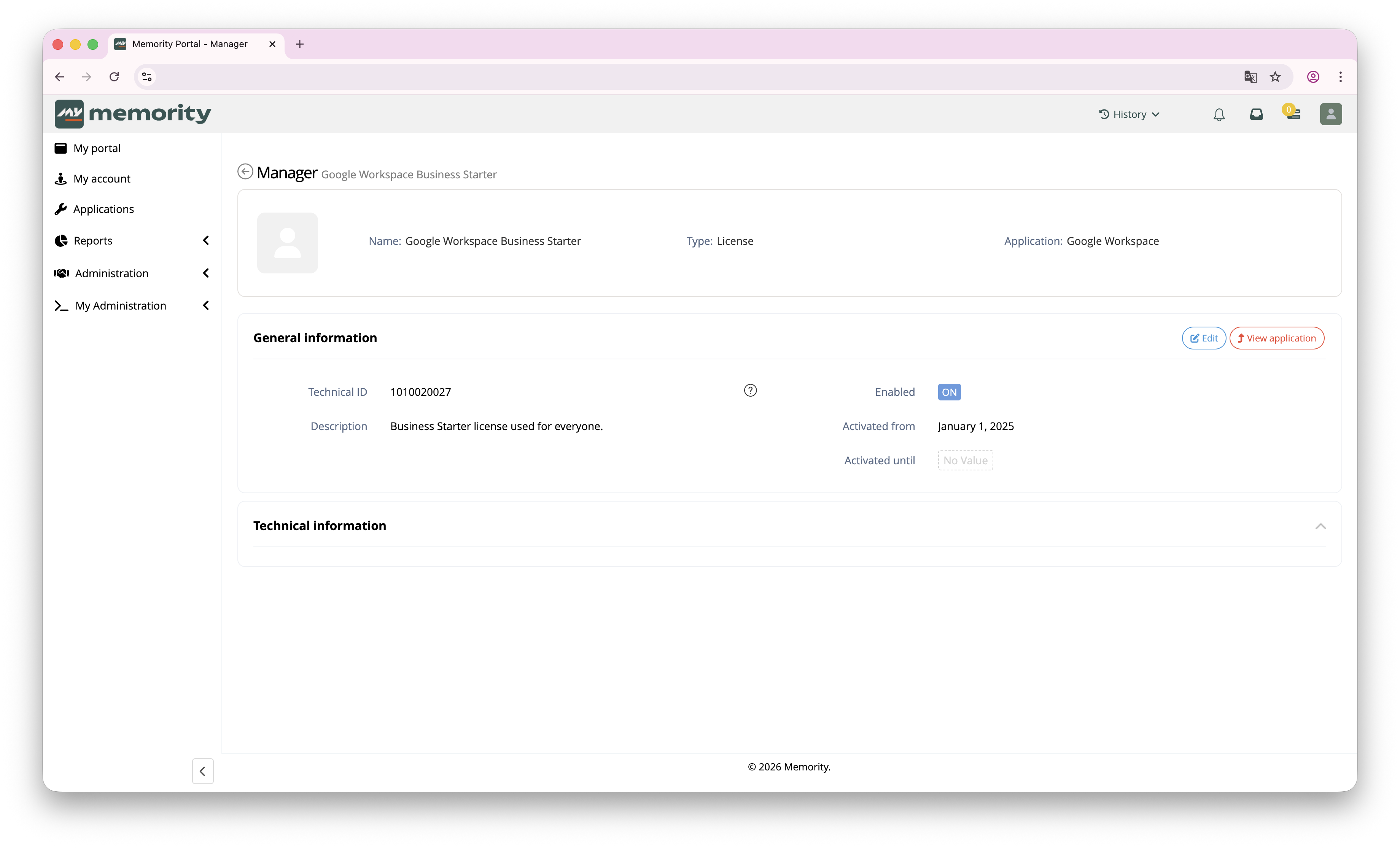
A license example
What matters most :
Name : must be understandable for administrators
Technical ID : must match the identifier used by the target system
If the Technical ID is incorrect, provisioning may fail or assign the wrong entitlement.
Create Application-Specific Provisioning Rights
To use dimension items in provisioning, you create application-specific rights based on templates delivered with presets.
Depending on the target application needs, you will use either :
A single-value right (exactly one profile / group / license)
A multi-value right (multiple profiles / groups / licenses)
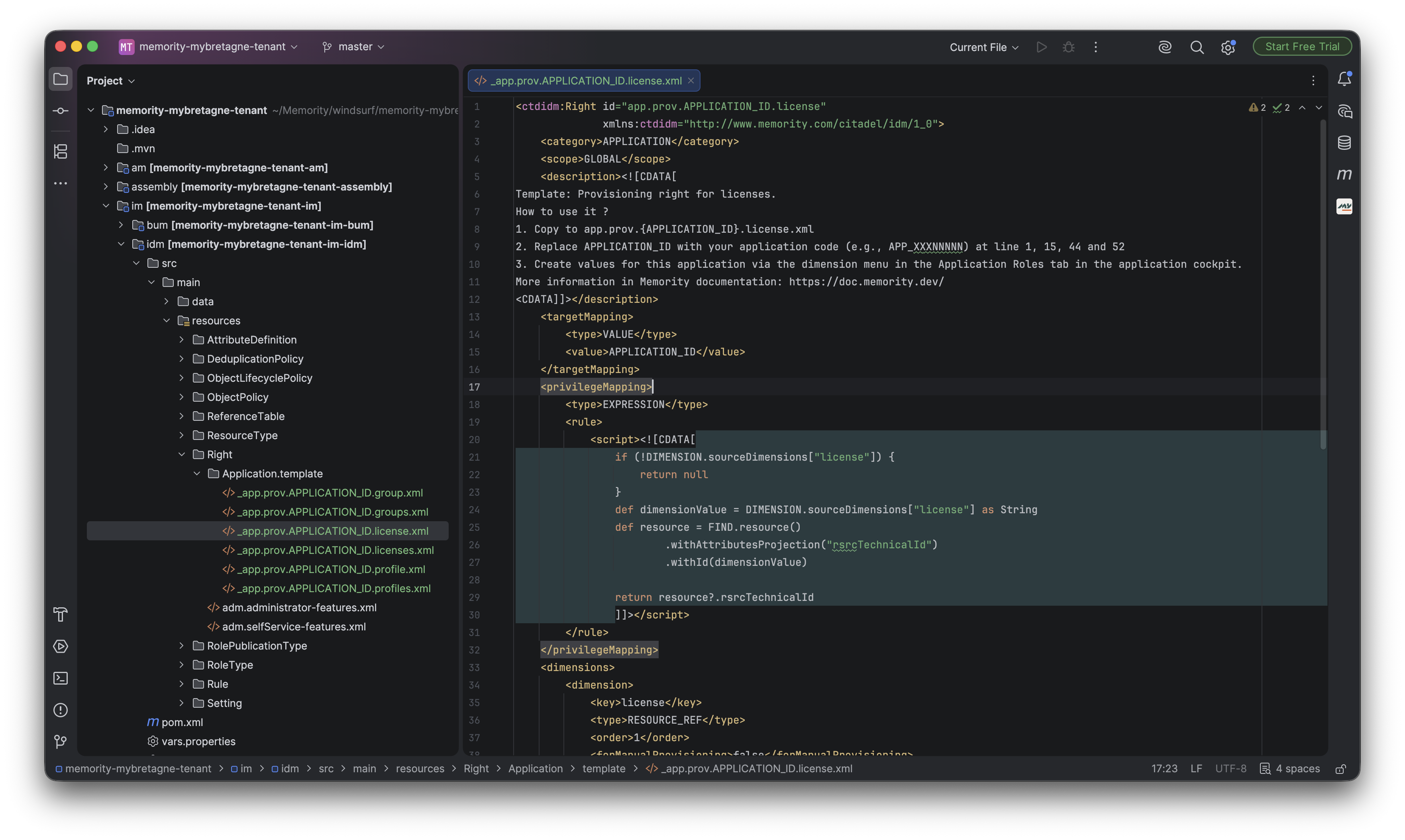
Right template to use License dimension in your provisioning
Use Dimensions in an Applicative Role
Create or edit an applicative role for the application
Add the relevant right (profile / group / license)
Select the dimension values from the catalog you created
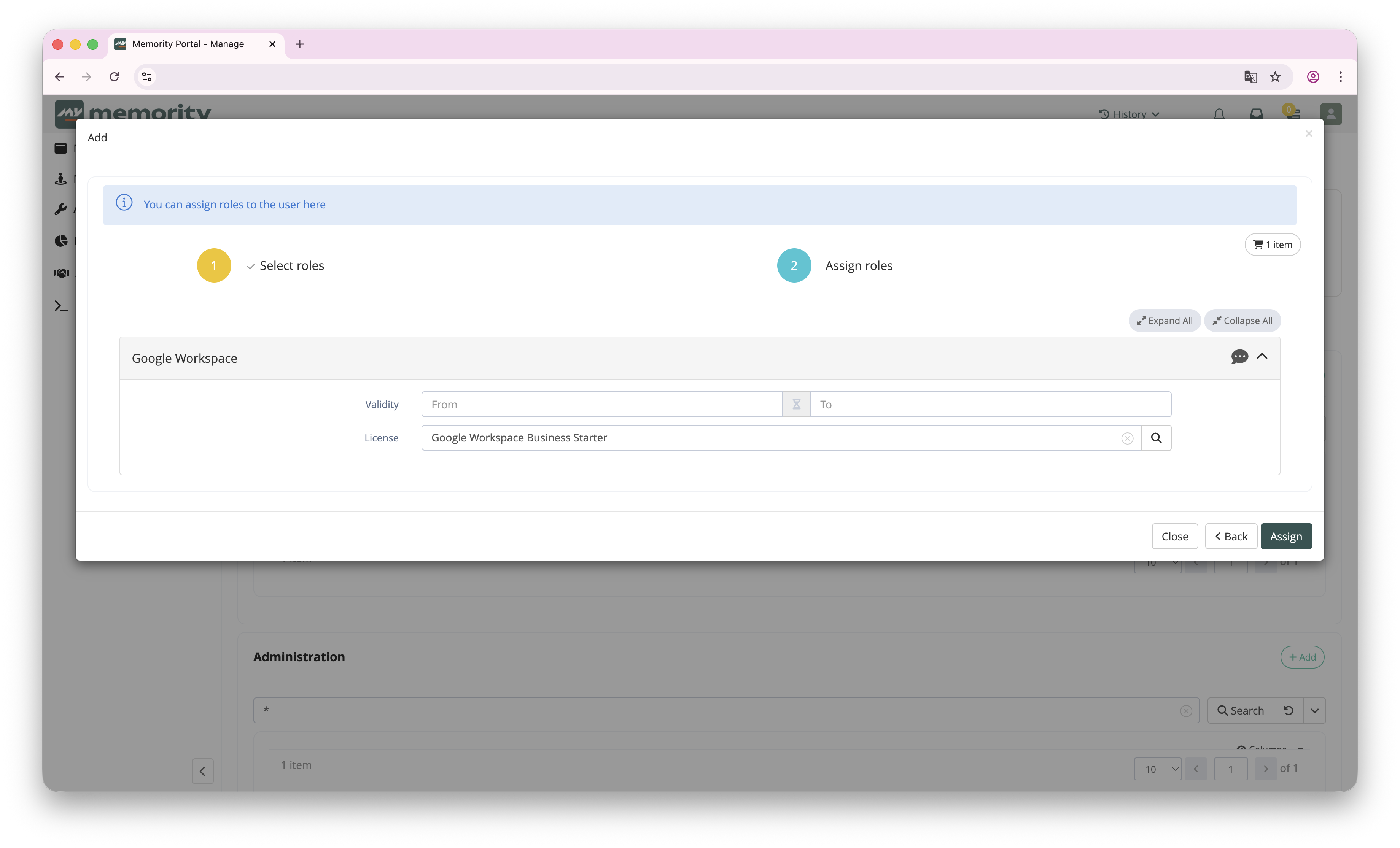
License selection during role assignment

By default, only enabled dimensions are displayed.
If a dimension is disabled after being assigned to a user, role assignment will not change. Actions must be taken according to client needs.
When assigning a role to an identity, the provisioning connector uses the selected dimension items and their Technical ID to provision the target application.
Troubleshooting
I Can't Find the Dimensions Screen
Verify the tenant uses presets 3.3.0 or later
Verify your permissions
Provisioning Assigns the Wrong Entitlement
Double-check the selected dimension item Technical ID
Validate the connector expect this exact identifier format
A Role Assignment References an Expired or Disabled Dimension
By default, a role assignment is not automatically updated when a dimension expires (for example, when its end date is reached).
This has no visible impact on provisioning as long as the dimension remains assigned on the role assignment.
If you remove the dimension value from the role assignment, you will not be able to select the same value again later if the dimension item is expired or disabled.
This is an expected behavior : expired dimensions are not meant to be selected again, unless they are re-enabled or extended.
INTERNAL_SERVER_ERROR After a Dimension Is Permanently Deleted
When a dimension reaches its end date, it becomes expired and is disabled.
Then, according to the tenant lifecycle policy, it will later be marked as deleted and eventually permanently removed from the tenant.
If the dimension is permanently removed while it is still referenced by one or more role assignments, accessing role assignment screens for impacted identities will result in an INTERNAL_SERVER_ERROR.
In that situation, provisioning can still remain in place as long as the assignment is not modified, because the role assignment still contains the dimension reference.
Workaround
Update or remove the deleted dimension on all impacted role assignments
Talk with the client to define wanted action when a dimension’s value expire to automate the update