Tasks Dashboard
Definition
The Tasks Dashboard allows you to track in real time the operations launched by a user (export, bulk actions, etc.), without blocking the use of the application.
It centralizes all tasks launched in the background and displays:
Their live status (in progress, completed)
Essential information (name, launch date, etc.)
A progress bar
And, depending on the task type, actions (e.g., downloading the final file, accessing details)
The Tasks Dashboard displays all tasks launched by the logged-in user.
For example: An export task launched from a report is automatically displayed in the dashboard.
The goal is to provide visibility, transparency, and control over the processes that run in the background.
Access & permissions
To display the Tasks dashboard, the user must have the following permission:
sys.bum-tasks-dashboard
Use cases
Export
Let's look at the case of an export.
Modal
When a user initiates an export, for example from the "internal" list, a confirmation modal appears, indicating that the task is being prepared.
We can then click "View task in the dashboard" or access it later via the menu or toolbar.
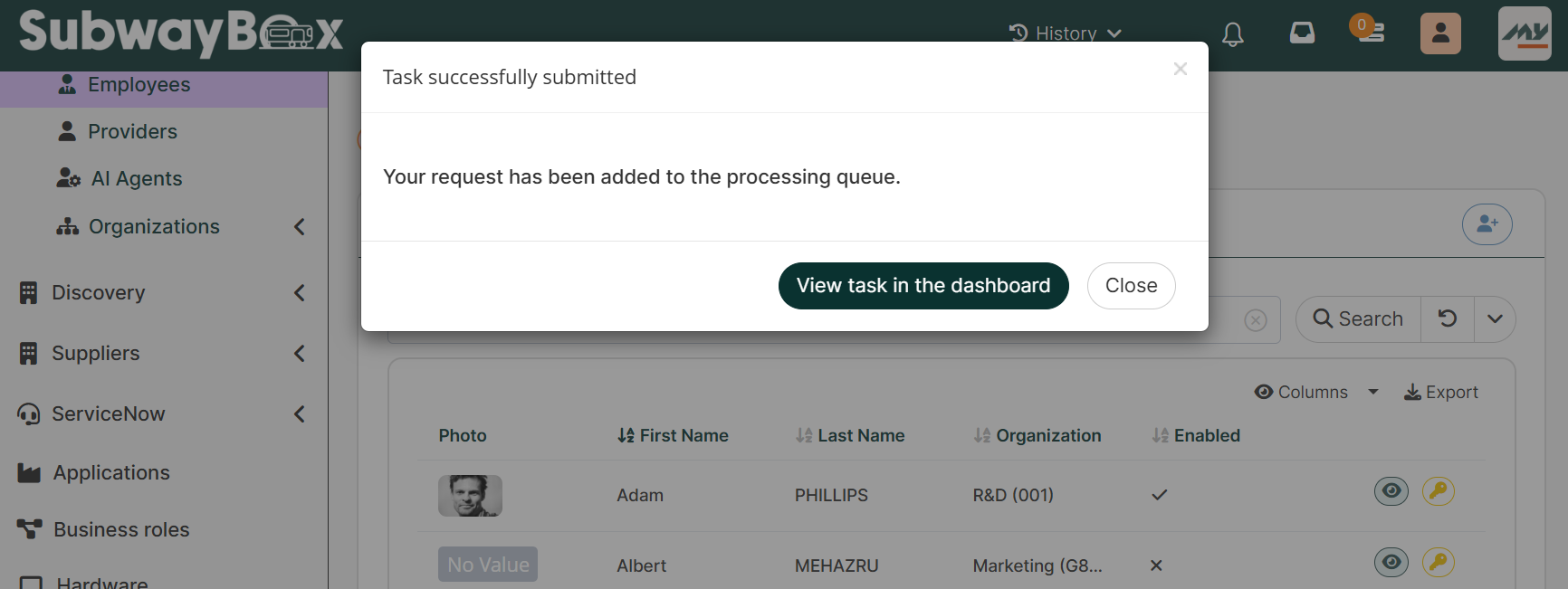
Modal dashboard after export task
Tasks dashboard view
In the Dashboard, the user can find their task along with:
The task status (a green dot means the task is complete, an orange dot means the task is in progress; no dot means the task is complete and has been read)
The action name
The task type
The launch date
The progress (progress bar)
The number of items processed
The duration
Once the task is completed, an action is available (example: downloading the export file).
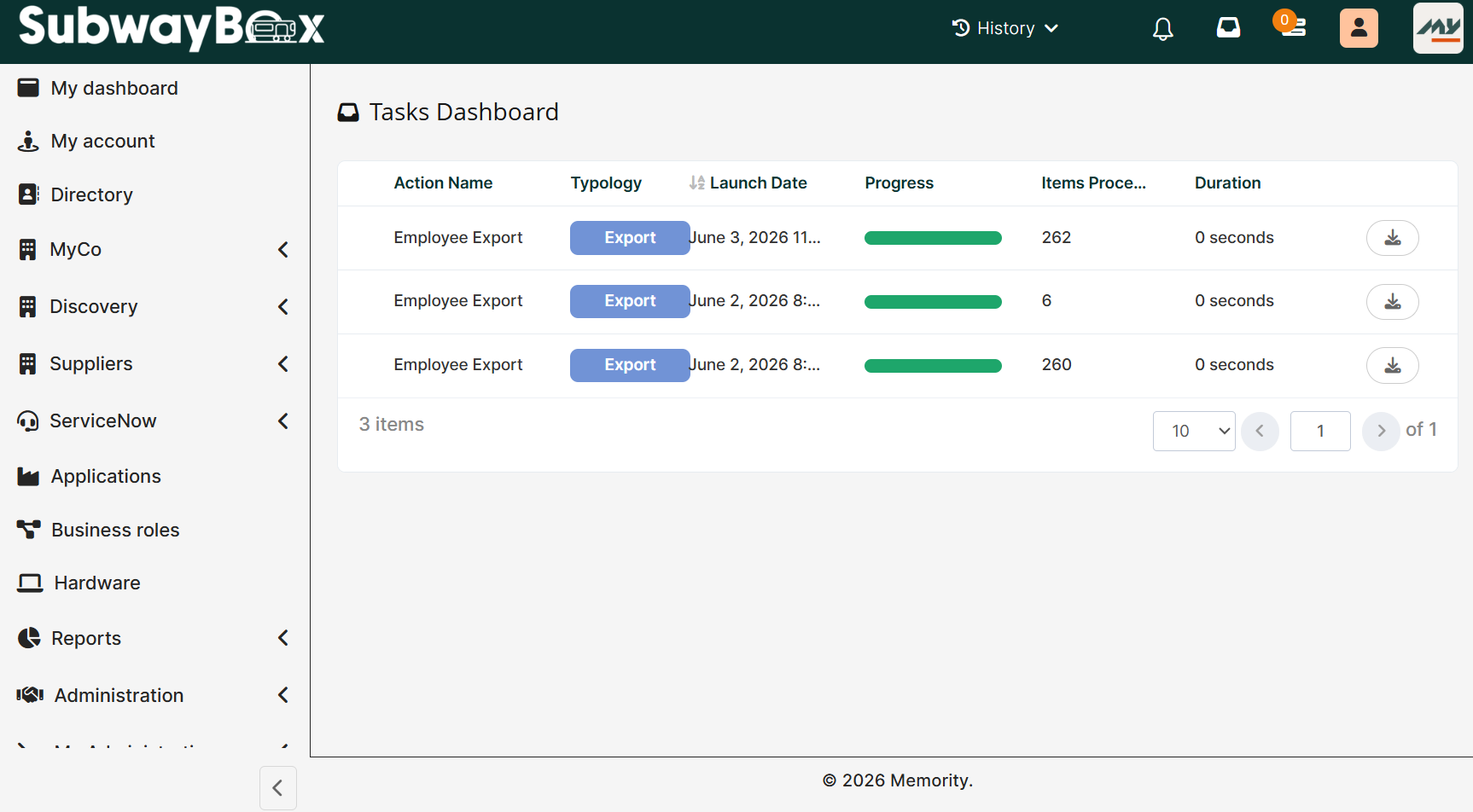
Tasks dashboard