
Fragments
Fragments let you add extra UI components to the login interface.
This guide explains how to structure and position fragments to customize your login page.
Fragments, also called custom elements, let you add extra UI components (e.g., buttons, messages or links) to the login interface.

To configure fragments, go to System → Settings → Access Service → amcp.am.ui.fragments in the Admin Portal.
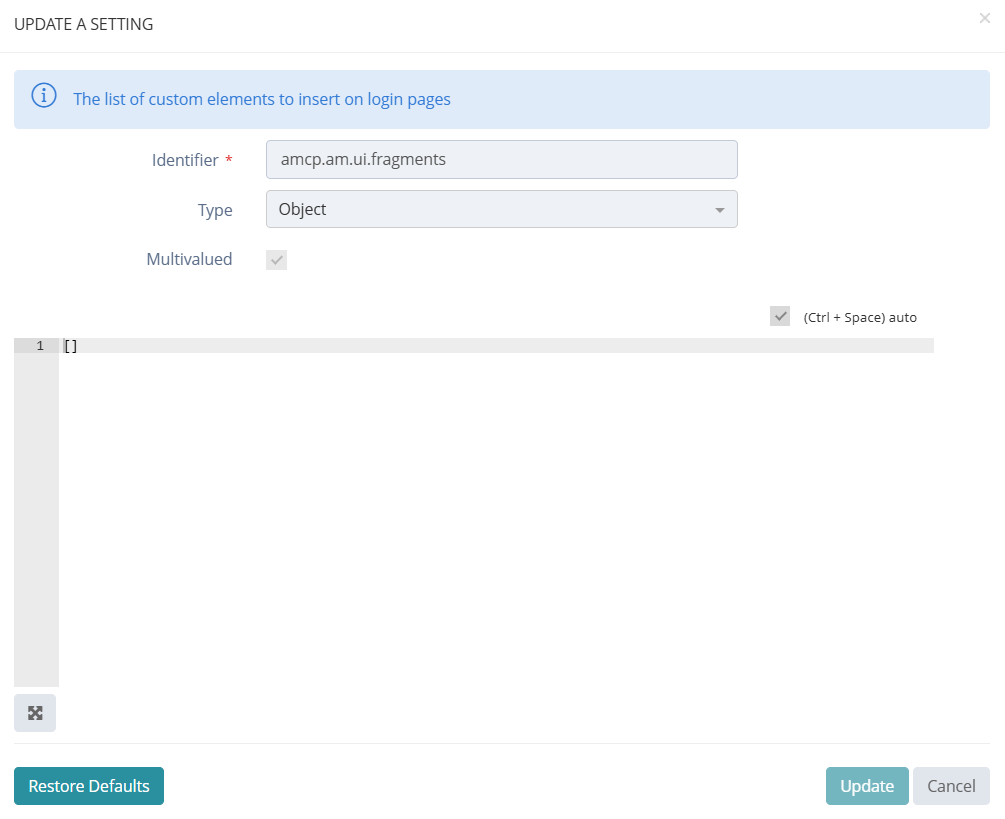
Each fragment block includes a unique id and specifies a position that defines where the fragment content appears on the login interface. You can add one or more items to each fragment block, and they will display together in the chosen location.
Configuration
Fragment Format
Each fragment includes a main container and one or more items. The table below lists the available fragment properties.
Property | Type | Mandatory | Description |
|---|---|---|---|
position |
| MANDATORY | Defines the position of the fragment on authentication pages. |
id |
| OPTIONAL | HTML ID of the container element. |
style |
| OPTIONAL | Inline CSS styles to apply to the container. |
classes |
| OPTIONAL | CSS classes to apply to the container. |
items |
| OPTIONAL | One or more items rendered inside the container. |
Automatic Generation of Internal Base URLs
Fragments support automatic generation of tenant-specific base URLs for internal links.
You can use the following variables inside href or html fields to dynamically generate URLs.
Variable | Generated Value | Description |
|---|---|---|
|
| Base URL of the User Portal (USR). |
|
| Base URL of the Admin Portal (ADM). |
|
| Base URL of the AM / SSO entry point. |
Items
Each item inside a fragment defines a specific element to display. The table below lists the available item properties.
Property | Type | Mandatory | Description |
|---|---|---|---|
type |
| MANDATORY |
|
id |
| OPTIONAL | HTML ID of the item. |
style |
| OPTIONAL | CSS style of the item. |
classes |
| OPTIONAL | CSS classes of the item. |
i18n |
| MANDATORY (if applicable) | Translation key. Prerequisite Define the key in the Translations section of the Admin Portal for each supported language. |
href |
| MANDATORY (if applicable) | Target link. |
target |
| OPTIONAL |
Default value: |
html |
| OPTIONAL | Contains raw HTML content. |

Positions
position indicates where to place the fragment on authentication pages.
Each position name follows a convention based on the page layout and the UI structure.
Selector Page
Main login page where the user connects to their tenant.
Position | |
SelectorBeforeTitlePage | 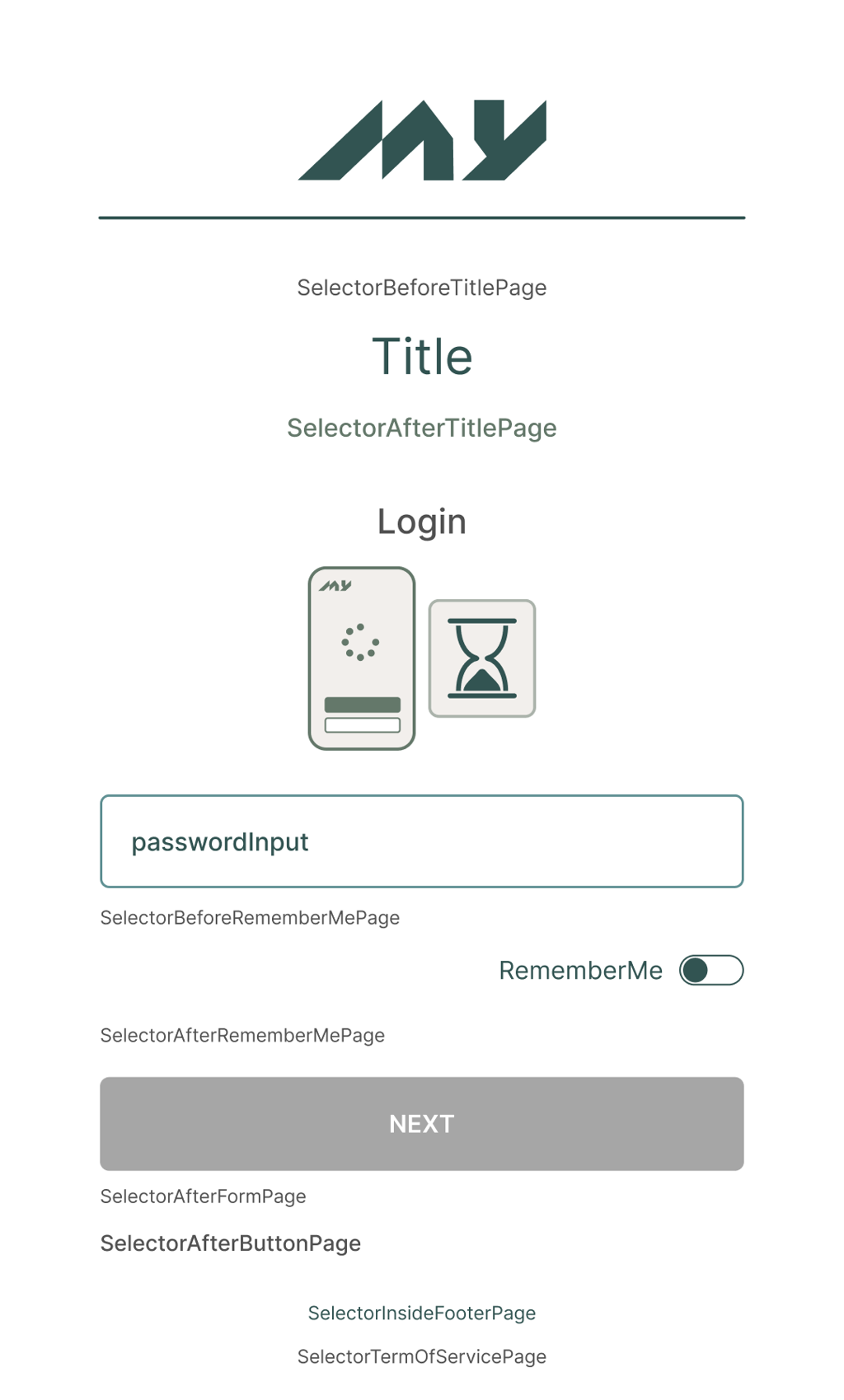 |
SelectorAfterTitlePage | |
SelectorBeforeRememberMePage | |
SelectorAfterRememberMePage | |
SelectorAfterFormPage | |
SelectorAfterButtonPage | |
SelectorInsideFooterPage | |
SelectorTermOfServicePage |
Kerberos Choice Page
Page where the user authenticates with Kerberos.
Position | |
KerberosChoiceAfterPage | 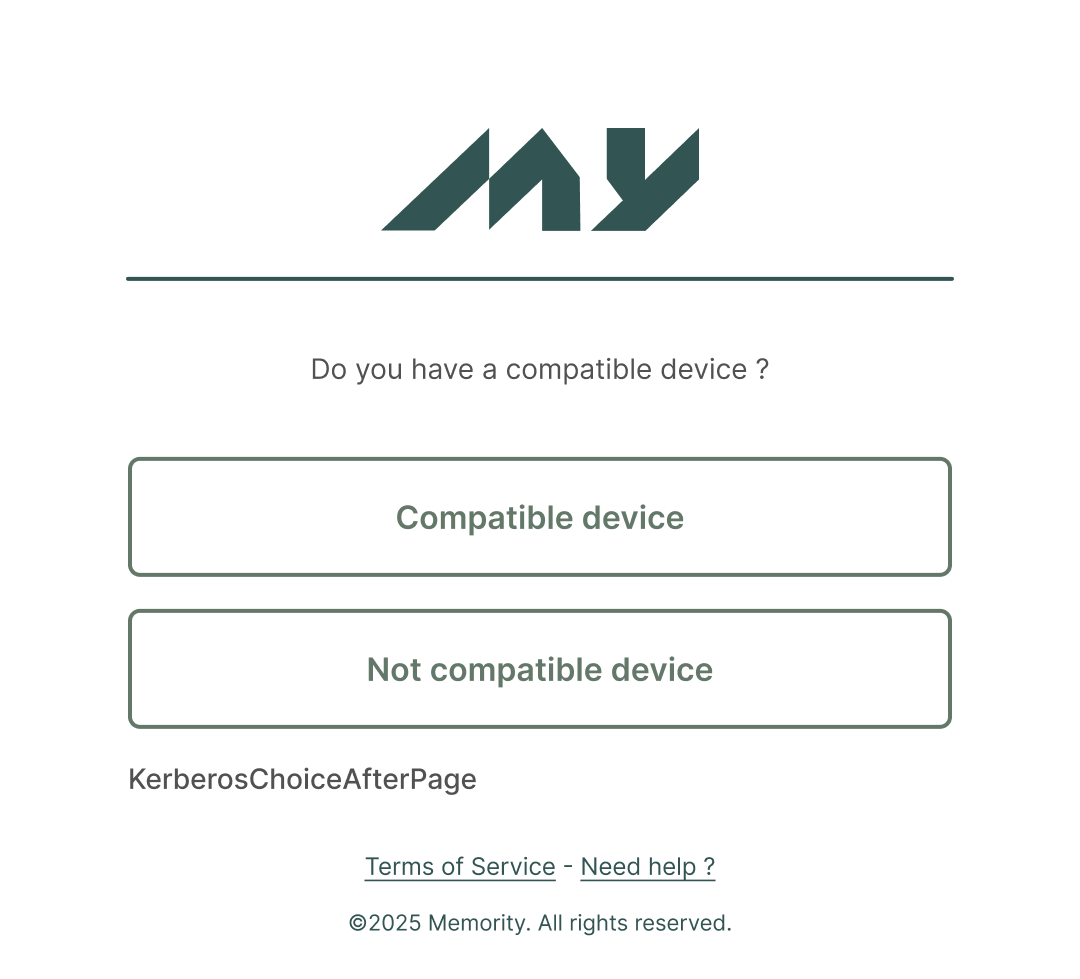 |
Password Login Page
Page where the user enters their password.
Position | 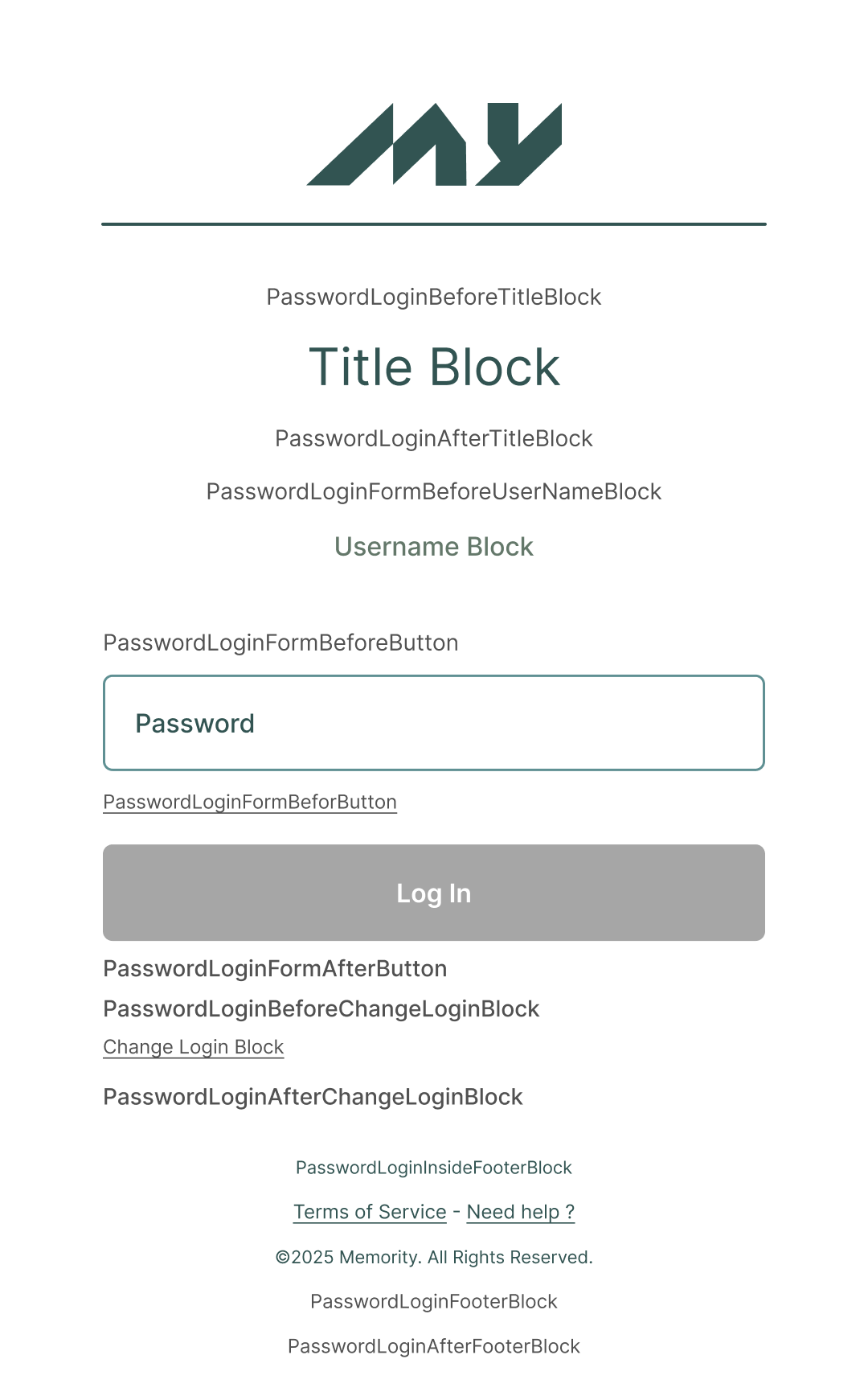 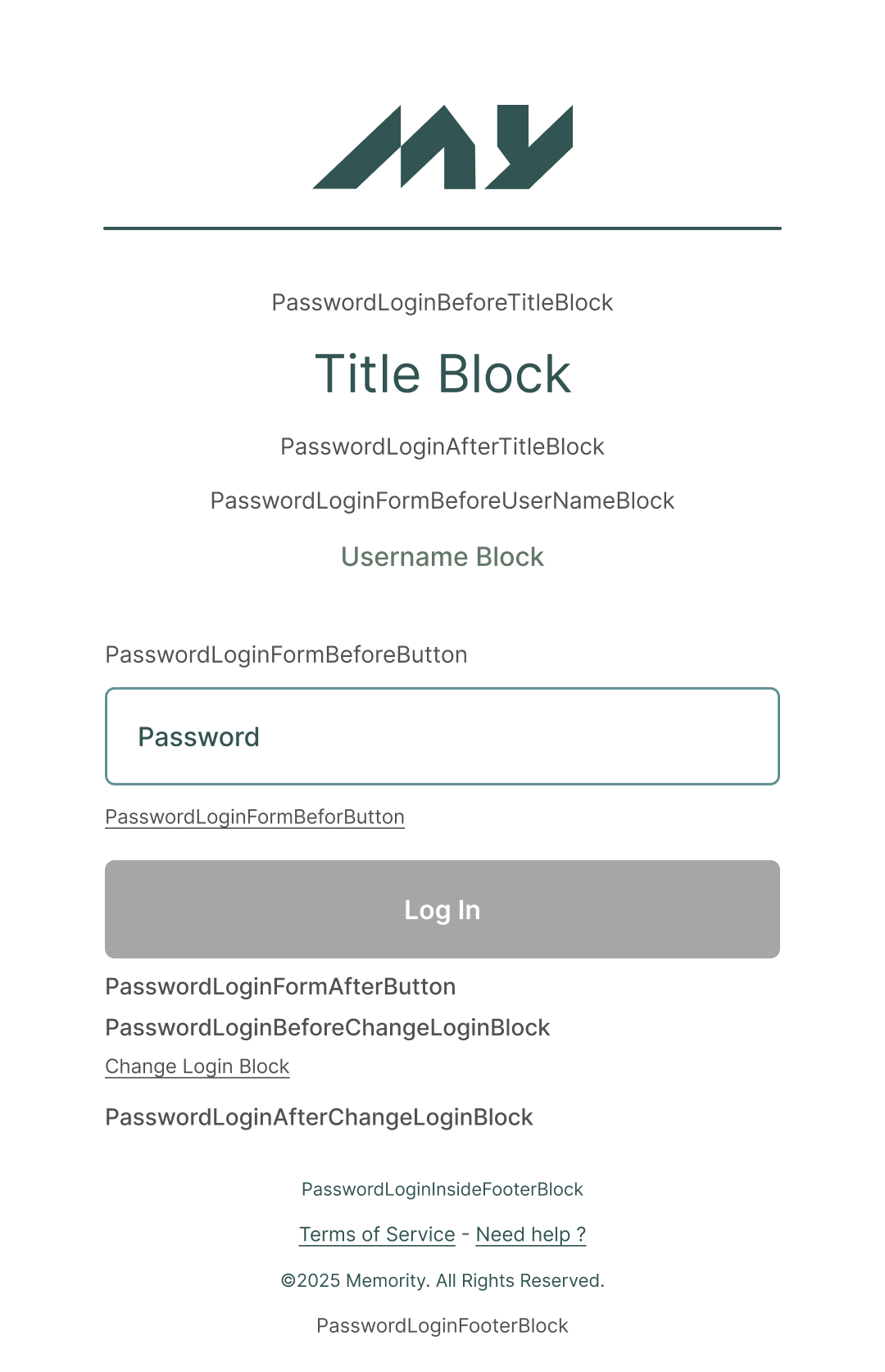 |
PasswordLoginBeforeTitleBlock | |
PasswordLoginAfterTitleBlock | |
PasswordLoginBeforeChangeLoginBlock | |
PasswordLoginAfterChangeLoginBlock | |
PasswordLoginFooterBlock | |
PasswordLoginAfterFooterBlock | |
PasswordLoginInsideFooterBlock | |
PasswordLoginFormBeforeUserNameBlock | |
PasswordLoginFormBeforePasswordBlock | |
PasswordLoginFormBeforeButton | |
PasswordLoginFormAfterButton |
Helium Login Page
Page where the user authenticates with Helium.
Position | 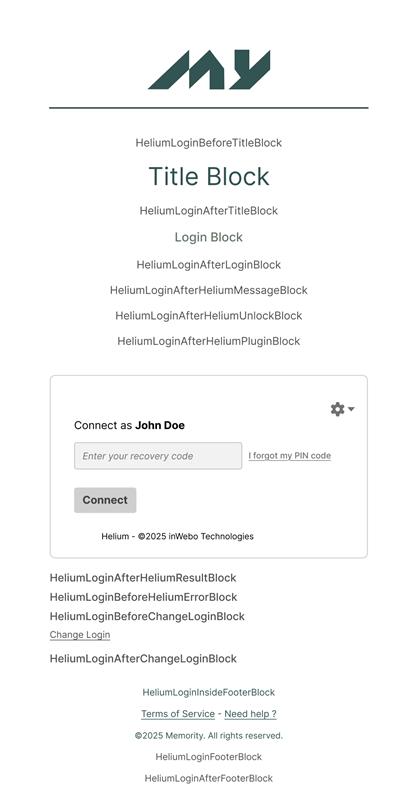 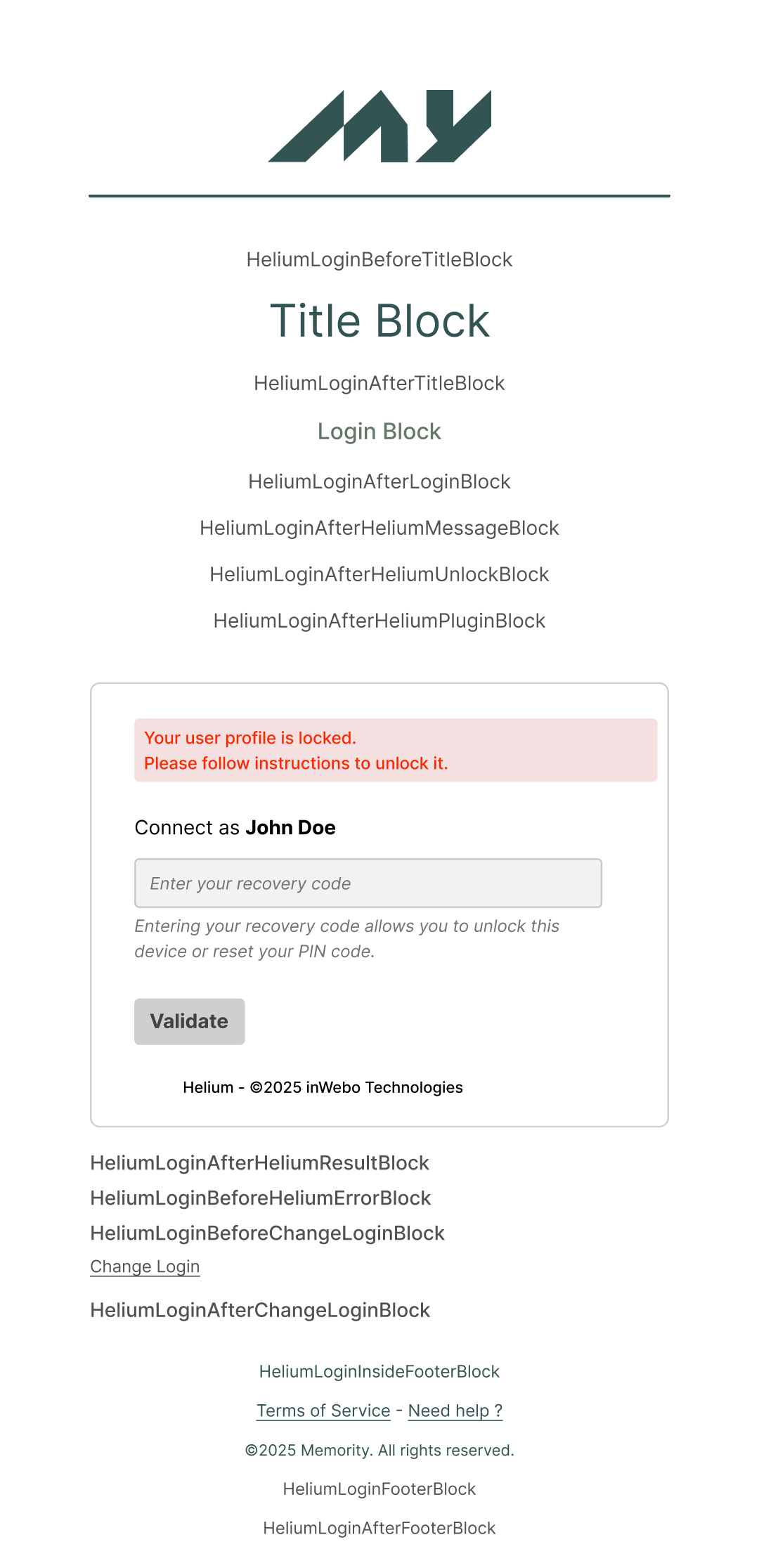 |
HeliumLoginBeforeTitleBlock | |
HeliumLoginAfterTitleBlock | |
HeliumLoginAfterLoginBlock | |
HeliumLoginAfterHeliumMessageBlock | |
HeliumLoginAfterHeliumUnlockBlock | |
HeliumLoginAfterHeliumPluginBlock | |
HeliumLoginAfterHeliumResultBlock | |
HeliumLoginBeforeHeliumErrorBlock | |
HeliumLoginBeforeChangeLoginBlock | |
HeliumLoginAfterChangeLoginBlock | |
HeliumLoginFooterBlock | |
HeliumLoginAfterFooterBlock | |
HeliumLoginInsideFooterBlock |
OTP Mobile Login Section
Page where the user authenticates with a one-time code retrieved from a mobile app.
Position | 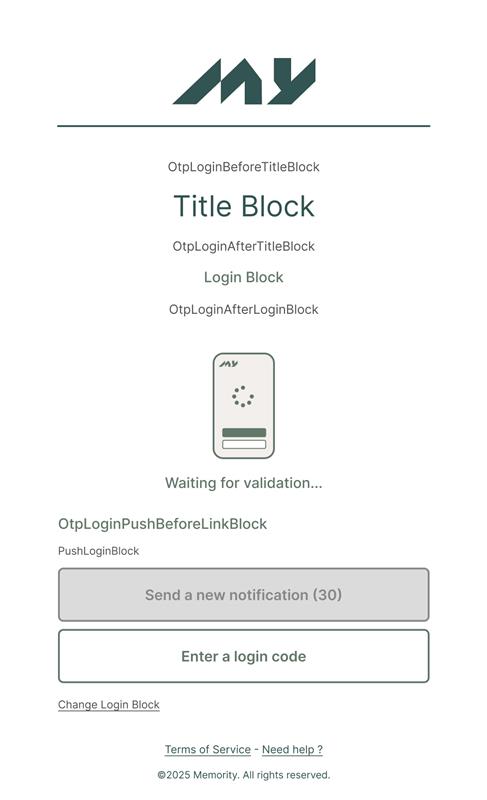 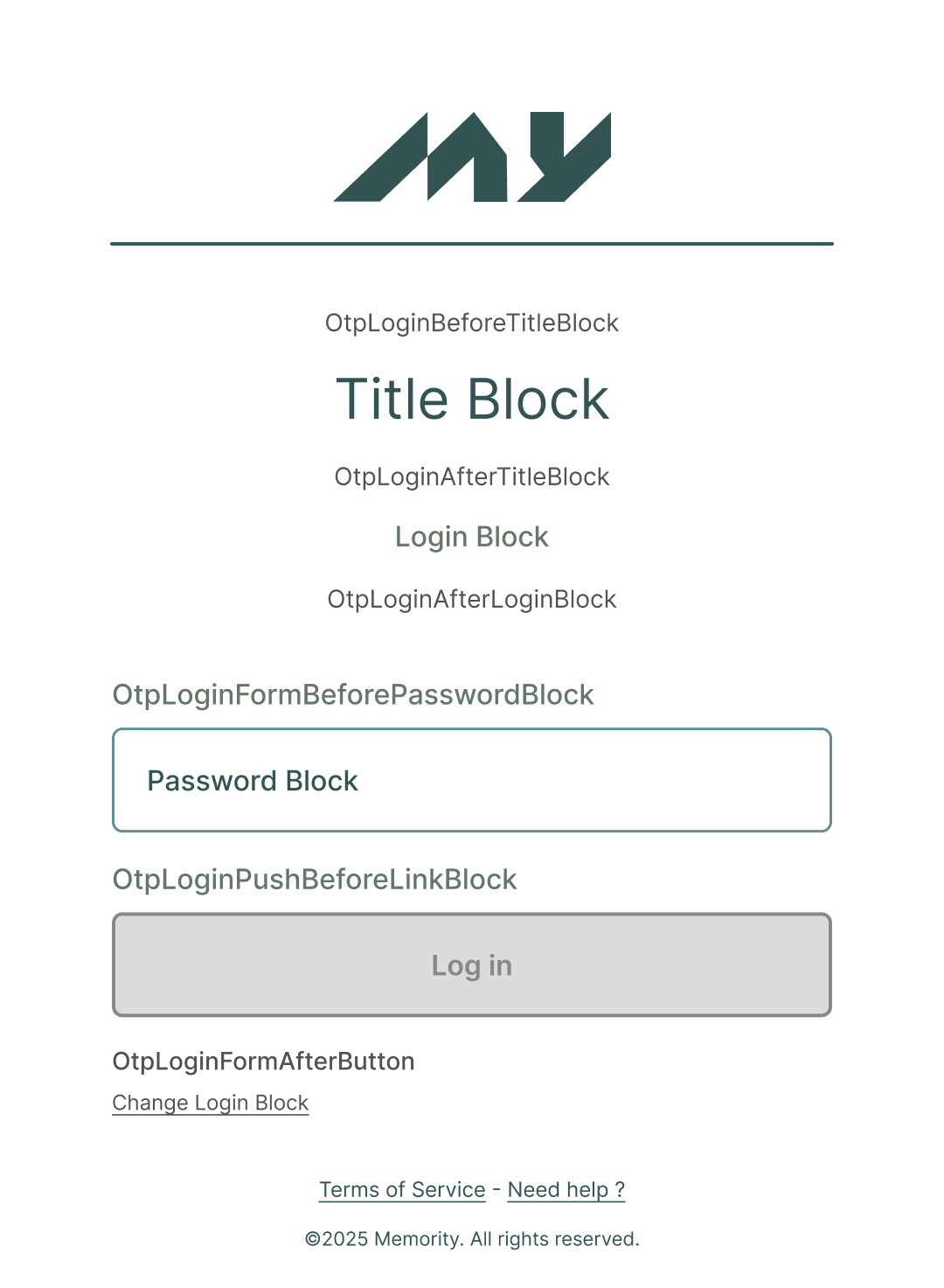 |
OtpLoginBeforeTitleBlock | |
OtpLoginAfterTitleBlock | |
OtpLoginPushAfterLoginBlock | |
OtpLoginPushBeforeLinkBlock | |
OtpLoginPushErrorAfterLoginBlock | |
OtpLoginPushErrorBeforeLinkBlock | |
OtpLoginOtpAfterLoginBlock | |
OtpLoginFormBeforeUserNameBlock | |
OtpLoginFormBeforePasswordBlock | |
OtpLoginFormBeforeButton | |
OtpLoginFormAfterButton |
OTP By Mail Login Page
Page where the user authenticates with a one-time code received by email.
Position |  .png?inst-v=5d46c511-5297-4e42-8ff2-4e683239d4e0) .png?inst-v=5d46c511-5297-4e42-8ff2-4e683239d4e0) |
OtpMailLoginBeforeTitleBlock | |
OtpMailLoginAfterTitleBlock | |
OtpMailLoginFormBeforePasswordBlock | |
OtpMailLoginFormBeforeButton | |
OtpMailLoginBeforeChangeLoginBlock | |
OtpMailLoginAfterChangeLoginBlock | |
OtpMailLoginFooterBlock | |
OtpMailLoginAfterFooterBlock | |
OtpMailLoginInsideFooterBlock |
OTP By Phone Login Section (SMS)
Page where the user authenticates with a one-time code received by SMS.
Position | 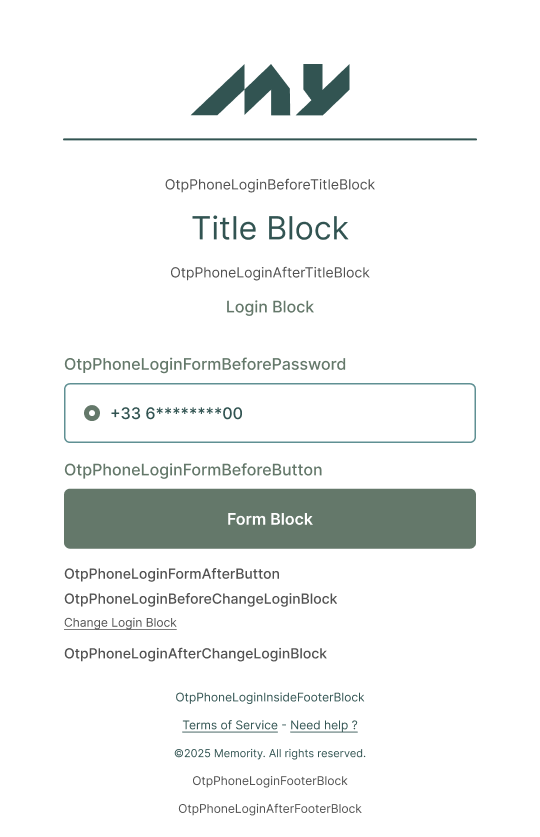 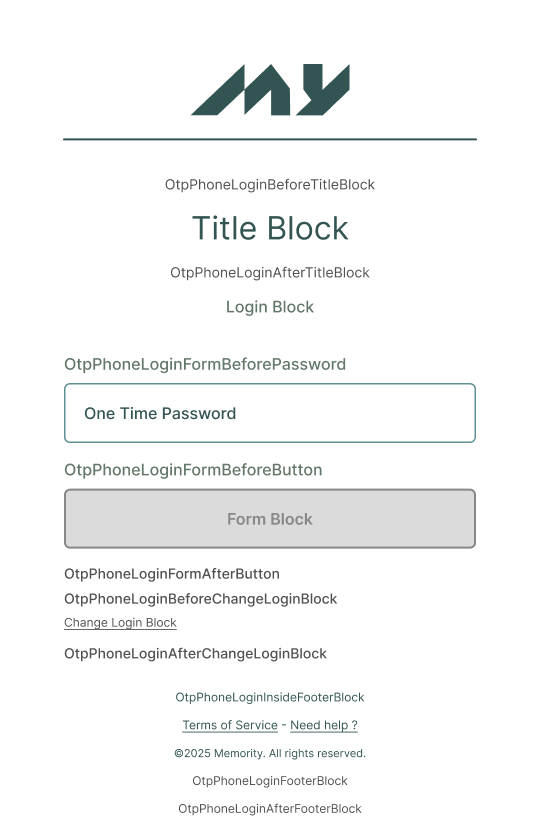 |
OtpPhoneLoginBeforeTitleBlock | |
OtpPhoneLoginAfterTitleBlock | |
OtpPhoneLoginFormBeforeButton | |
OtpPhoneLoginFormAfterButton | |
OtpPhoneLoginBeforeChangeLoginBlock | |
OtpPhoneLoginAfterChangeLoginBlock | |
OtpPhoneLoginFooterBlock | |
OtpPhoneLoginAfterFooterBlock | |
OtpPhoneLoginInsideFooterBlock |
WebAuthn Login Page
Page where the user authenticates with a WebAuthn-compatible device.
Position | 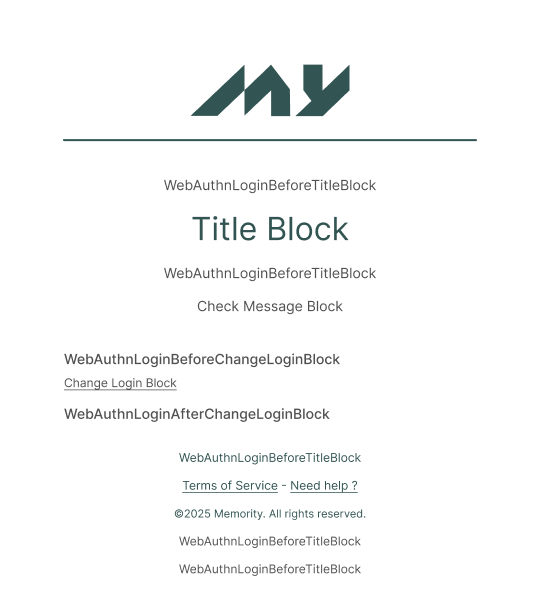 |
WebAuthnLoginBeforeTitleBlock | |
WebAuthnLoginAfterTitleBlock | |
WebAuthnLoginBeforeChangeLoginBlock | |
WebAuthnLoginAfterChangeLoginBlock | |
WebAuthnLoginFooterBlock | |
WebAuthnLoginAfterFooterBlock | |
WebAuthnLoginInsideFooterBlock |
Example: Add a password reset link above the login button
The following fragment adds a password reset link before the login button on the password login page, using the PasswordLoginFormBeforeButton position:
{
  "position": "PasswordLoginFormBeforeButton",
  "id": "PasswordLoginFormBeforeButton",
  "style": null,
  "classes": null,
  "items": [
    {
      "type": "LINK",
      "id": "password-reset-link",
      "style": null,
      "classes": "null",
      "i18n": "tenant.ui.am.login.password-reset-link",
      "href": "{{ENV.usrBaseUrl}}/self/access/passwordReset-common-publicAccess",
      "target": "NEW_TAB",
      "html": null
    }
  ]
}